Gemini CLI. Part 1

What is Gemini CLI
Gemini CLI is an open-source tool released by Google. It works as a conversational agent directly in the terminal: it accepts natural language commands, analyzes your codebase, executes shell commands, and solves multi-step tasks. In essence, it is Google's answer to Anthropic's Claude Code.
Gemini CLI uses the ReAct (Reason and Act) architecture — it reasons, chooses the right tool, and acts. The tool supports a REPL-style interface with two types of commands:
- Slash commands (/ prefix) – session management, tools, and settings.
- Bang commands (! prefix) – direct execution of shell commands.
Key features:
- Code analysis and refactoring – understands an existing project, explains complex sections, generates functions.
- Debugging – finds bugs, suggests fixes, automatically creates tests.
- Command execution – runs git, npm, pip, and other utilities directly from the CLI.
- Google Search integration – gets up-to-date information from the web in real-time.
- Support for MCP (Model Context Protocol) – connects to external databases and third-party tools.
- Integration with Google Drive, Docs, Sheets – pulls data via link without manual copying.
- Works with your Gmail mail.
- Can read various files, even PDFs.
As for the limits for now, but these limits may change and by the time you read this article, they might have already changed.
| Characteristic | Value |
|---|---|
| Context Window | 1 million tokens |
| Requests per minute | 60 |
| Requests per day | 1,000 |
| Price | Free (personal Google account) |
| Platforms | Windows, macOS, Linux |
To view usage statistics, you can call the command:
/stats
Installation
Installation is quite simple; if you have homebrew (by the way, available not only on macOS but also on Linux), then you can just run the command:
brew install gemini-cli
If not, you need to install Node.js and run the command:
npm install -g @google/gemini-cli
Once Gemini is installed, it can be launched with the command:
gemini
The tool will prompt you to authorize through a personal Google account, after which you immediately get free access. Then you'll get something like this:
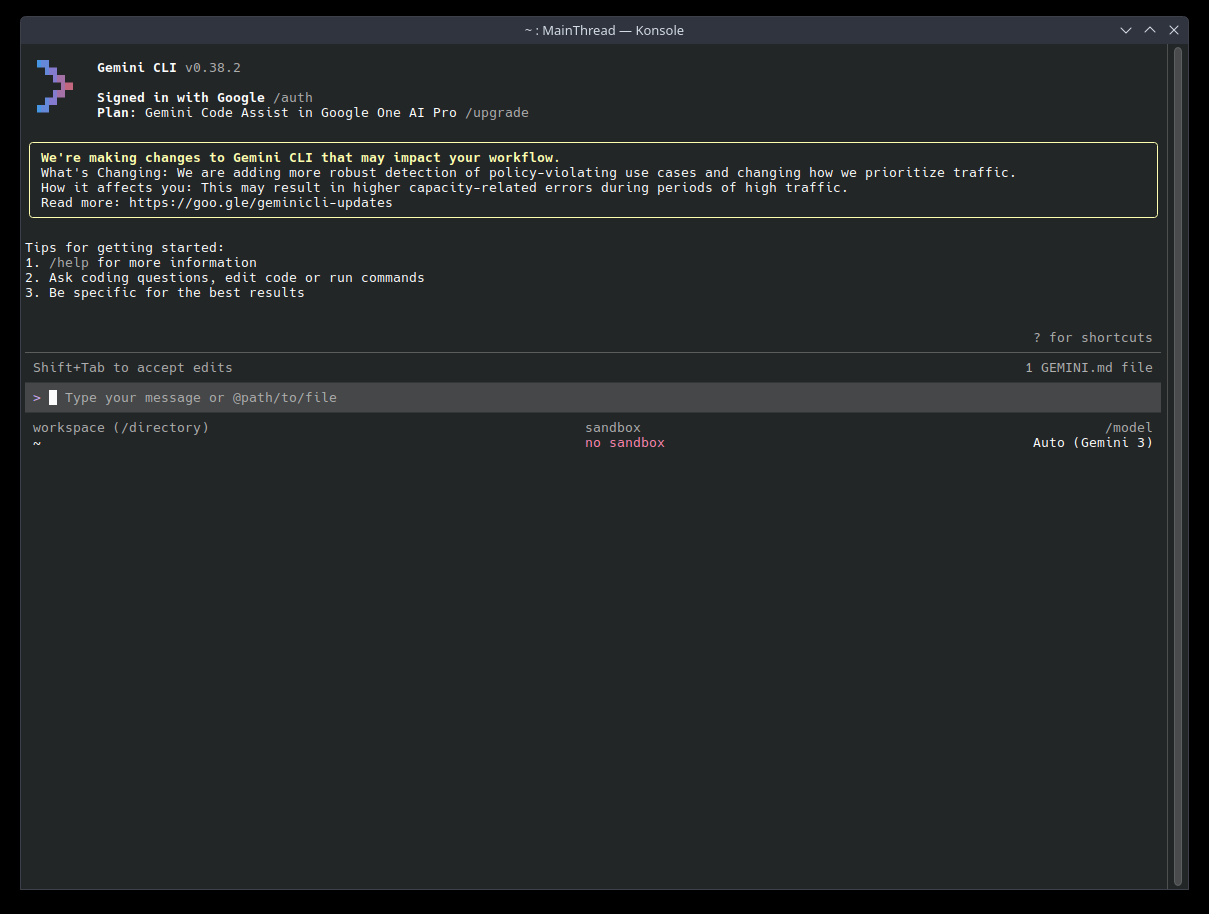
By default, Gemini CLI works in safe mode: any actions that can change the system (writing files, executing commands, etc.) require confirmation. Before execution, the tool will show a diff or command and ask for permission (Y/n). This protects against unwanted changes.
Configuration
You can customize Gemini CLI for yourself with the /settings command. A large list of settings will open.
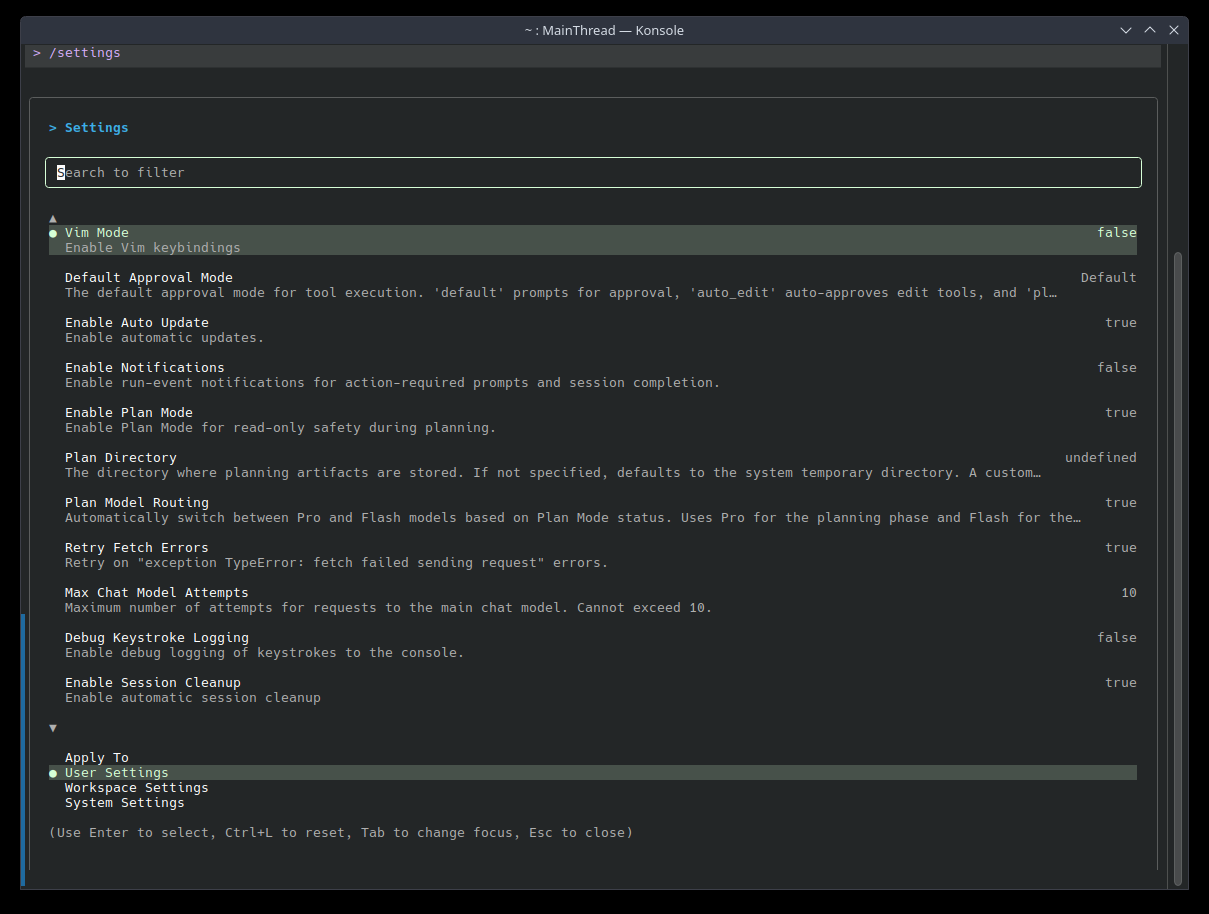
It can also be configured via a settings.json file. Settings are applied in the following order of priority:
- Project: .gemini/settings.json (overrides user ones).
- User: ~/.gemini/settings.json.
- System: /etc/gemini-cli/settings.json (applies to all users, has the highest priority).
Example settings.json:
{
  "theme": "GitHub",
  "autoAccept": false,
  "sandbox": "docker",
  "vimMode": true,
  "checkpointing": { "enabled": true },
  "fileFiltering": { "respectGitIgnore": true },
  "usageStatisticsEnabled": true,
  "includeDirectories": ["../shared-library", "~/common-utils"],
  "chatCompression": { "contextPercentageThreshold": 0.6 },
  "customThemes": {
    "MyCustomTheme": {
      "name": "MyCustomTheme", "type": "custom",
      "Background": "#181818", "Foreground": "#F8F8F2",
      "LightBlue": "#82AAFF", "AccentBlue": "#61AFEF", "AccentPurple": "#C678DD",
      "AccentCyan": "#56B6C2", "AccentGreen": "#98C379", "AccentYellow": "#E5C07B",
      "AccentRed": "#E06C75", "Comment": "#5C6370", "Gray": "#ABB2BF"
    }
  }
}
More details about configuration can be found in the documentation
API Key and Limits
By default, Gemini CLI works through your personal Google account with free limits. If you need more requests or want to use a corporate account, you can connect your own API key through Google AI Studio. After getting the key, set the environment variable:
# Linux / macOS
export GEMINI_API_KEY="your_key"

# Windows (PowerShell)
$env:GEMINI_API_KEY="your_key"
Or add it to settings.json:
{
  "apiKey": "your_key"
}
When using your own key, limits are determined by your pricing plan in Google AI Studio, not the free restrictions of a personal account.
Usage Tips
Let's consider usage tips for the tool and its hidden features.
Use GEMINI.md
Use the GEMINI.md file to provide instructions to the model and adapt it to your project. Use the /init command to create an initial GEMINI.md file for your project.
The CLI merges GEMINI.md files from multiple locations. More specific files override general ones. The loading order is as follows:
- Global Context:
~/.gemini/GEMINI.md(for instructions that apply to all your projects). - Project / Parent Directory Context: The CLI searches for
GEMINI.mdfiles starting from your current directory and up to the project root folder. - Subdirectory Context: The CLI also scans subdirectories for
GEMINI.mdfiles, which allows you to specify instructions for specific components.
Note: Use the
/memory showcommand to see the final merged context that is sent to the model.
Example GEMINI.md using imports:
# Main Project Context: My Awesome App

## General Instructions
- All Python code must comply with the PEP 8 standard.
- Use a 2-space indent for all new files.

## Style Guides for Specific Components
@./src/frontend/react-style-guide.md
@./src/backend/fastapi-style-guide.md
Don't Forget to Add .geminiignore
Create a .geminiignore file in your project root to exclude files and directories from Gemini's tools, similar to .gitignore.
/backups/
*.log
secret-config.json
.env
Creating Custom Commands
We got acquainted with the /settings command, but we can create custom commands ourselves. For example, you can make a /test:gen command that generates unit tests based on a description, or /db:reset that deletes and recreates a test database.
Gemini CLI supports custom slash commands, which are defined in simple configuration files. Essentially, these are pre-prepared prompt templates. To create such a command, add a commands/ directory either in ~/.gemini/ (for global commands) or in .gemini/ of your project.
Inside commands/, create a separate TOML file for each new command. The filename determines the command name: for example, the file test/gen.toml creates the command /test:gen.
Consider an example. Suppose you need a command that generates a unit test from a textual requirement description. Create the file:
# Invoked as: /test:gen "Description of the test"
description = "Generates a unit test based on a requirement."
prompt = """
You are an expert test engineer. Based on the following requirement, please write a comprehensive unit test using the Jest framework.

Requirement: {{args}}
"""
Now, after reloading or restarting Gemini CLI, you can simply type:
/test:gen "Ensure the login button redirects to the dashboard upon success"
Gemini CLI will recognize /test:gen and substitute {{args}} from the prompt template with the passed argument. There can be many commands; let your imagination run wild.
Sandbox
In the settings.json example above, there is a "sandbox": "docker" parameter – let's see what it does.
By default, Gemini CLI executes shell commands directly on your system. This is convenient but potentially dangerous: an agent with broad permissions could accidentally (or not so accidentally) change something important. Sandbox mode solves this problem – all commands are executed inside an isolated Docker container, not on the host system.
To enable:
{
  "sandbox": "docker"
}
For this, Docker must be installed and running on the machine (how to install can be read here). Once enabled, Gemini will run all shell commands inside the container – your filesystem and system settings will remain untouched. This is especially useful if you give the agent broad tasks or use the --yolo mode described below.
Expanding Capabilities with MCP
MCP allows you to expand Gemini's capabilities. Gemini CLI comes with several default MCP servers (e.g., providing access to Google Search, code execution sandboxes, etc.), and you can also add your own.
For example, through the Figma MCP, you can connect the agent to your project so it can get data directly from layouts. To add an MCP server, open settings.json and add:
"mcpServers": {
  "myserver": {
    "command": "python3",
    "args": ["-m", "my_mcp_server", "--port", "8080"],
    "cwd": "./mcp_tools/python",
    "timeout": 15000
  }
}
or via the command:
gemini mcp add myserver --command "python3 my_mcp_server.py" --port 8080
The server tools become available in Gemini CLI immediately after its launch. Useful commands:
# Check all configured MCP servers (inside a Gemini CLI session)
/mcp

# See a list of servers and their tools
gemini mcp list

# Remove a server
gemini mcp remove <name>
After changing the configuration, you need to restart Gemini CLI for the new settings to take effect. The main places to find ready-made servers:
- mcpservers.org – aggregator with search by categories and tags
- mcp.so – largest collection, includes servers from awesome-mcp-servers
- glama.ai/mcp/servers – current registry, updated daily
- pulsemcp.com – popular aggregator with ratings
- mcpserverhub.net – has a Russian interface
Reading Google Docs and Much More
Suppose we need to pass data from a document to the agent. Instead of copying text manually, we can just send a link. If the Workspace MCP server is already configured, Gemini CLI will independently fetch and read the file. For example:
Summarize requirements from this design doc: https://docs.google.com/document/d/<id>
We can also read files from our Google Drive. There are two main options:
felores/gdrive-mcp-server
- open-source, read-only access, automatically converts Google Docs → Markdown, Sheets → CSV, Presentations → Text
sonickarnati/gemini-mcp-google-tools
- comprehensive server: Drive + Gmail + Google Calendar + Scholar
For simple file reading, gdrive-mcp-server is recommended — it's lighter and focused specifically on Google Drive.
@ - passing files and images
To avoid describing the content of a file or image in words, you can point it directly to our agent using the @ symbol.
Explain to me what is happening in this code: @./src/main.js
A few notes on how to use @ effectively:
- File size limits – has a huge context (up to 1 million tokens), so you can include quite large files or many files at once. But very large files may be truncated.
- Automatic ignore: By default, Gemini CLI respects
.gitignoreand.geminiignorewhen collecting directory content. - You can specify multiple links at once:
Compare @./foo.py and @./bar.py and tell me what the difference is.
Use Gemini CLI for System Configuration
If you have problems with the OS, you can open the terminal and ask Gemini to fix the problem.
Examples:
- find and fix a problem in
.bashrc; - ask to fix
PATHif a command doesn't run; - diagnostic of errors in the system;
- workstation setup – ask to install programs and configure them, for example
docker,git, etc.
But be careful, you need to see what Gemini is doing. If it asks you to confirm some command but you don't know what it does — ask to explain this command and what it does.
Disabling Request Confirmation
Gemini has a mode that allows performing actions without your involvement – YOLO (You Only Live Once) – enabled with the --yolo flag.
gemini --yolo
It's important to remember that Gemini can execute absolutely any command – including dangerous ones like rm -rf / – without asking you.
Running Gemini in the Background
Headless mode allows running Gemini CLI in the background to use AI capabilities in automated tasks, scripts, and CI/CD pipelines without human involvement.
Here is an example – automatic generation of a Commit Message. Instead of coming up with a commit description, you can ask Gemini to read your staged changes and write a message for you.
git diff --staged | gemini -p "Write a concise commit message in English in the Conventional Commits format for these changes."
or another one – code review before submission:
cat server.js | gemini -p "Do a review of this Node.js code. Point out potential vulnerabilities, performance issues, and suggest refactoring."
Saving and Resuming Chat Sessions
Gemini CLI allows you to save chats and return to them later. Basic session management commands:
-
/chat save <session_name>– save the current session. Saves the entire current conversation history (context) under a given tag/name. If such a name already exists, it will be overwritten. Example:/chat save fix-docker-bug -
/chat list– View the list of saved sessions. Displays a list of all previously saved chats (checkpoints) that are available for loading. -
/chat resume <session_name>– Resume a session. Loads the selected message history into your current context. You can continue the dialogue from the same place. Example:/chat resume fix-docker-bug -
/chat delete <session_name>– Delete a session. Deletes a saved checkpoint so it doesn't take up space and clutter the list. Example:/chat delete fix-docker-bug
Multiple Directories
If your project consists of multiple folders, for example frontend and backend, you can run Gemini so that it gets access not to one folder, but to two. There are two options:
--include-directoriesflag at startup
gemini --include-directories "../backend:../frontend"
- Persistent project setting in settings.json -
includeDirectories
When multi-directory mode is enabled, Gemini takes into account files in all connected locations. The /directory show command displays which directories are used in the workspace.
You can also add directories during a session using the /directory add <path> command.
Compressing the Conversation
If you communicate with Gemini for a long time, you may hit the context length limit. Remember that language models have a fixed context window – if you go beyond its limits, the model forgets earlier messages. Use /compress to briefly recap the conversation and replace the entire history with a compact summary.
Multimodality
Remember that Gemini works not only with text – it can also work with images, diagrams, and PDF files. To refer to a file, you can use the @ symbol in the prompt.
What is depicted in this picture @./picture.png
We can also pass the result of its work as an image and point out errors it made – which is very convenient.
Use Checkpoints and /restore as an "Undo" Button
Sometimes Gemini can make changes to files that don't suit you – in this case, you can roll back to a previous state. Checkpoints can be enabled in the settings or when launching Gemini.
gemini --checkpointing

or in settings "checkpointing": { "enabled": true } in settings.json.
And use the /restore command – returns the working directory to a saved checkpoint.
More useful commands:
-
/restore list(or just /restore without arguments) to see a list of recent checkpoints with timestamps and descriptions. -
/restore <id>to roll back to a specific checkpoint. If an id is not specified and there is only one available checkpoint, it will be restored by default.
Memory
/memory commands allow saving important information into the AI's long-term memory (in the GEMINI.md file) so it takes it into account in current and future sessions. The memory function works like a growing knowledge base. It compensates for the model's "forgetfulness" in long dialogues and saves you from having to repeat the same introductory data.
Basic commands:
/memory add "<text>"- save a fact, setting, or agreement./memory show- display all memory content./memory refresh- update the context if you edited the GEMINI.md file manually.
Why this is useful:
- Technical data: quick saving of ports, tokens, and critical configuration settings.
- Decision log: fixing code style or chosen libraries so the AI doesn't contradict accepted rules.
- Global settings: saving personal communication preferences (e.g., your name and tone) into the global ~/.gemini/GEMINI.md file, which works for all projects.
Real Workflow
Suppose we need to write a small REST API in NestJS from scratch – a simple task service (To-Do) with Prisma and SQLite. Let's go all the way: from launching Gemini CLI and setting the context to rolling back changes and automatically generating a commit message.
Step 1. Prepare the Project
Create a NestJS app via the official CLI and immediately connect Prisma:
npx @nestjs/cli new todo-api --package-manager npm --skip-git=false
cd todo-api
npm install prisma @prisma/client class-validator class-transformer
npx prisma init --datasource-provider sqlite
Step 2. Configure Gemini for the Project
Pre-place configs so that sandbox and checkpoints work immediately upon first launch. .gemini/settings.json:
{
  "theme": "GitHub",
  "sandbox": "docker",
  "checkpointing": { "enabled": true },
  "fileFiltering": { "respectGitIgnore": true },
  "chatCompression": { "contextPercentageThreshold": 0.7 }
}
Create .geminiignore – cut off from the agent what it shouldn't touch:
node_modules/
dist/
coverage/
*.log
.env
*.db
prisma/migrations/
Custom command for test generation – .gemini/commands/test/gen.toml:
description = "Generates a Jest test based on a requirement description."
prompt = """
You are an experienced QA engineer. Write a Jest test based on the requirement below.
For unit tests, use @nestjs/testing (Test.createTestingModule) and PrismaService mocks.
For e2e — supertest on top of INestApplication.
Cover the happy path and at least one negative scenario.

Requirement: {{args}}
"""
Step 3. First Launch and GEMINI.md
Launch the agent, type in the console:
gemini
Inside the session, call /init – Gemini will examine the folder and generate a base GEMINI.md. Let's supplement it with project rules so the agent immediately understands the style:
# Todo API

A small REST API in NestJS + Prisma + SQLite.

## Conventions
- TypeScript strict mode, no `any`.
- All endpoints prefixed with `/api/v1`.
- Task IDs — `cuid` via Prisma, not autoincrement.
- Dates — UTC, ISO 8601.
- Validation — `class-validator` + `ValidationPipe` globally (`whitelist: true`, `forbidNonWhitelisted: true`).
- Business logic — in services, controller only handles HTTP.
- Tests — Jest, unit tests next to the file (`*.spec.ts`), e2e — in `/test`.
- Commits — Conventional Commits.

## Structure
- `/src` — modules, controllers, services
- `/prisma` — `schema.prisma` and migrations
- `/test` — e2e tests
Check:
/memory show
Step 4. Skeleton Development
Give Gemini its first major task with a link to the context via @:
Generate a tasks resource via `nest g resource tasks --no-spec` and implement CRUD
according to rules from @./GEMINI.md.

In @./prisma/schema.prisma add a Task model:
id (String, cuid), title (String), description (String?), done (Boolean, @default(false)),
createdAt (DateTime, @default(now())).

Create PrismaModule + PrismaService, connect in TasksModule.
DTO — with class-validator. Controller — under /api/v1/tasks.
Don't forget the migration: `npx prisma migrate dev --name init`.
Gemini will show a plan, diffs, and ask for confirmation for each file. Inside the Docker sandbox, it will also perform dependency installation and migration. Start the server directly from the CLI with the command:
!npm run start:dev
If something crashes – ask to fix it without leaving the session:
Server complains about DI at startup — look at logs and fix.
Step 5. Tests via Custom Command
Use the pre-prepared command:
/test:gen "POST /api/v1/tasks creates a task and returns 201 with cuid in body"
/test:gen "GET /api/v1/tasks/:id for non-existent id returns 404"
/test:gen "PATCH /api/v1/tasks/:id with done=true changes status and returns updated task"
Run both layers:
!npm run test
!npm run test:e2e
Step 6. Save Important Things in Memory
So that in future sessions the agent doesn't ask the same questions, fix key decisions:
/memory add "ORM — Prisma only, do not use TypeORM."
/memory add "Return errors in RFC 7807 format via custom exception filter."
/memory add "Logging — pino via nestjs-pino, console.log is prohibited."
These entries will go into ~/.gemini/GEMINI.md or local GEMINI.md and will be pulled in automatically at the next launch.
Step 7. Save Chat Session
Finished a big piece of work – fix the conversation so you can return:
/chat save todo-api-mvp
Step 8. Experiment and Rollback via /restore
Decided to test the hypothesis that Fastify would be faster and prettier than the default Express. Ask:
Switch the application from Express to the NestJS Fastify adapter.
Update main.ts, Request/Response types, middleware, and e2e tests.
The agent bulk-edits files – but e2e tests fail due to the difference in supertest, a third-party library doesn't support Fastify, the profit is questionable. Roll back:
/restore list
/restore <id_before_experiment>
The working directory returns to the state before the changes – without git reset --hard and manual file restoration. This is that very "Undo button".
Step 9. Commit via Headless Mode
The remaining changes suit us. Let's do a commit, but let Gemini write the text:
git add .
git diff --staged | gemini -p "Write a concise commit message in Conventional Commits format in English. Only the message, no explanations or markdown."
Convenient to wrap in a git alias or pre-commit hook – never have to come up with chore: stuff again.
Step 10. Compress Context and Continue
The session has grown, the token limit is pressing. Compress history:
/compress
Gemini will replace the long conversation with a compact summary, and you can work further - for example, ask to add JWT authentication via @nestjs/passport or attach Swagger via @nestjs/swagger.
Step 11. Next Day - Return to Work
Open the terminal, go to the project, launch:
gemini
Inside:
/chat list
/chat resume todo-api-mvp
Context loaded, GEMINI.md pulled in, memory in place, custom commands available – you can immediately continue from the same place where you left off.
We have covered the basics of Gemini CLI: installation, first commands, and key features of the tool. The main conclusion is that it's a powerful way to work with Google models directly from the terminal, without switching to a browser and without interrupting the workflow.
In the next article, we'll cover subagents – one of the most interesting mechanisms of Gemini CLI, which allows delegating tasks and building complex automated chains.
Install and experiment before the next part!
Comments
Log in to join the conversation
Sign In